iPhone 18 Pro Camera Not Working After a Repair? Check Repair Assistant First
Apple says iPhone 18 Pro models cannot use the camera if a repair is not finished or the iPhone is not restored. Here is what to check before treating the symptom as a failed camera.
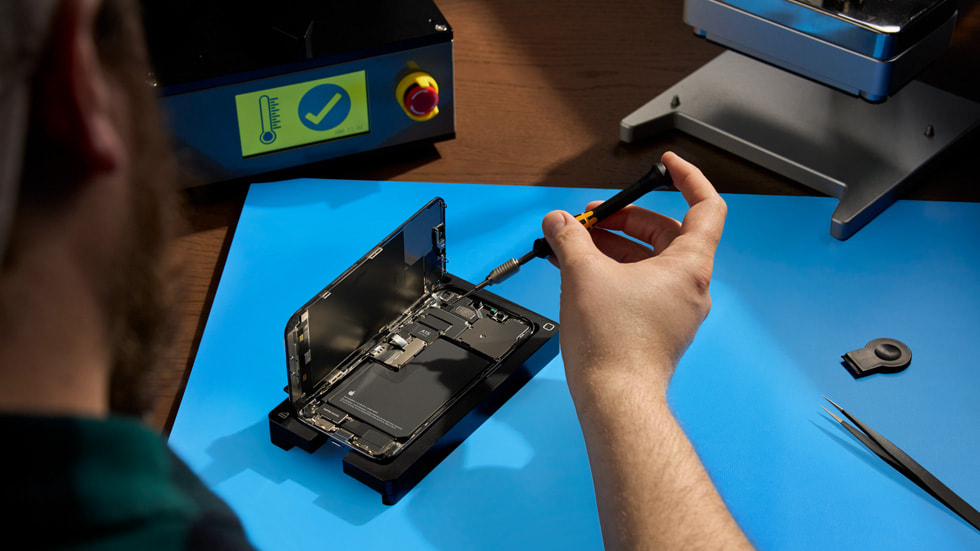
What Apple says changed
Apple's current Repair Assistant guidance says the tool installs calibration data after certain iPhone or iPad parts are replaced. The device must be connected to Wi-Fi, have more than 20 percent battery, and be updated before the repair can be finished.
The important exception for iPhone 18 Pro models is unusually direct: Apple says that if the repair is not finished or the iPhone is not restored, the camera cannot be used.
Why this matters when a camera looks dead after service
A camera that will not open immediately after a repair can look like a bad module, bad connector, or installation problem. On an iPhone 18 Pro or iPhone 18 Pro Max, an unfinished calibration state now belongs near the top of the checklist.
That does not mean every post-repair camera problem is calibration. Physical installation, part quality, damage, and software can still be involved. The point is to verify the repair state before replacing a part again.
- Open Settings, then General, then About, then Parts & Service History.
- Look for Finish Repair or Restart & Finish Repair.
- Confirm Wi-Fi, battery level, and current iOS before retrying Repair Assistant.
- After the repair is finished, run front and rear camera checks again.
Used parts can add another layer
Apple also says a previously used part can be protected by Activation Lock. If the necessary Apple Account information is unavailable, the repair might not be finishable and the part might remain locked.
Apple's guidance says a device with a part that cannot be unlocked is not eligible for trade-in. That makes Parts & Service History relevant not only to repair verification but also to used-phone buying and resale.
How TestingPhone fits into the workflow
TestingPhone can help verify camera behavior after the calibration step, but a browser cannot complete Repair Assistant or determine whether an Apple part is calibrated. Treat the Apple repair state and the browser camera check as two separate pieces of evidence.
If the camera becomes available after Repair Assistant, run a structured camera inspection for focus, clarity, spots, stability, and front-versus-rear behavior before calling the job complete.
Keep reading